
How to use DNA Baser
Part 2
How to edit and save the contig
Level: beginner
  
This tutorial will show you how to edit, remove vectors and save the assembled contig.
1. Removal of the ambiguous bases from the contig.
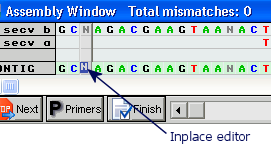
Go to the first ambiguous base (which in this example is N) and double click it. The Inplace editor should appear:

Now press a key to replace the ambiguous base with the desired
one (which in this example is a gap).
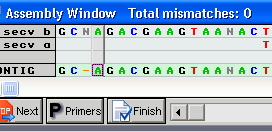
At this moment the Inplace editor will accept your input, will exit and the cursor will jump to the next column:

DNA Baser will remove all gaps ("-") from the contig when this will be saved to disk.
2. Primer detection/Vector removal
You do not need to do anything to remove the vectors from the contig. DNA Baser will automatically trim the vectors from your contig. Visit this page for more information about the vectors and active primers.
3. Saving the contig
Generally, you do not need to do anything to save the contig. DNA Baser will automatically save the contig for you. It will be saved in the same folder where the input sequences/chromatogram are.
However, you need to manually save the contig if you edit it. You can save the contig from the SAVE CONTIG menu or by pressing the FINISH button.
The difference is that by pressing the Finish button will not only save the contig but will also close the current window.
Read the next tutorial to find out how to assemble using a reference sequence.
If you have any questions, don't hesitate to write an email to us or to use our forum for support. |