This tutorial will show you how to create contigs by assembling two SCF chromatogram files to a reference sequence file.
In DNA Sequence Assembler open the Project Manager (should be opened by default). Navigate to the folder where your files are. DNA Sequence Assembler will automatically choose a name for you, but you can change it.
To start the alignment process:
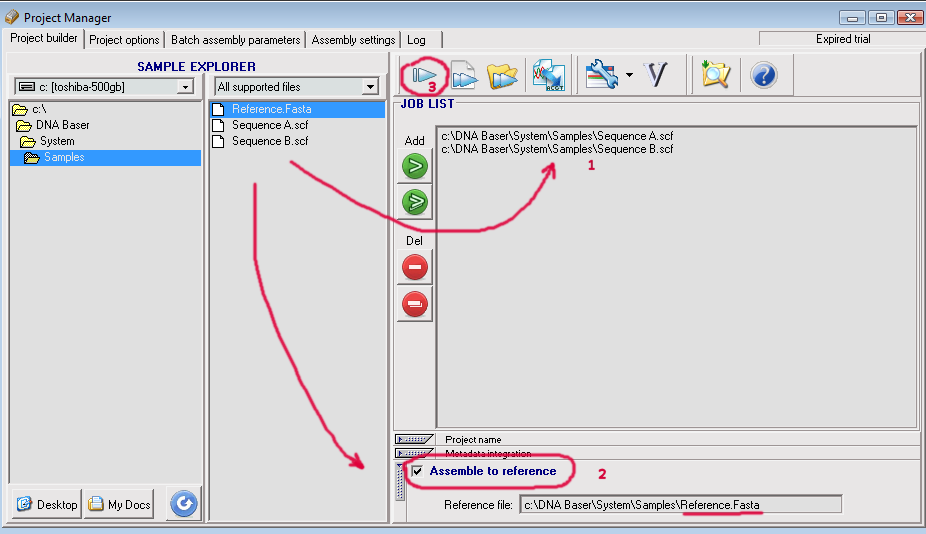
1. Select the two or more files that are going to be assembled by adding them to the JOB LIST.
You can add files to the Job List in several ways:
use the button to add selected file/files to the Job List.
use the button to add all files to the Job List.
using your mouse, drag and drop files one by one from File List to the Job List.
If you want to remove files from the Job List, than use button.
2. Add the reference sequence. Drag and drop the desired sequence file in the 'Assemble to reference' panel:
The check box must be activated in order to assemble using a reference sequence.
3. Finally, press the START button. DNA Sequence Assembler should begin the assembling process.
DNA Baser needs at least 2 files in the Job List in order to start the assembly process. However, in some cases, you may want to assemble a single file to the reference.
The trick to work around this is to make a copy of your sequence using a similar name (for example, if you sequence name is Input1.scf make a copy of it called Input1_copy.scf), put both files in Job List and assemble them to the reference.
A better trick is to enter the reference also into the job list together with your 'true' input sequence.
As the copy sequence is identical with the original one, it will not influence your alignment.
Output
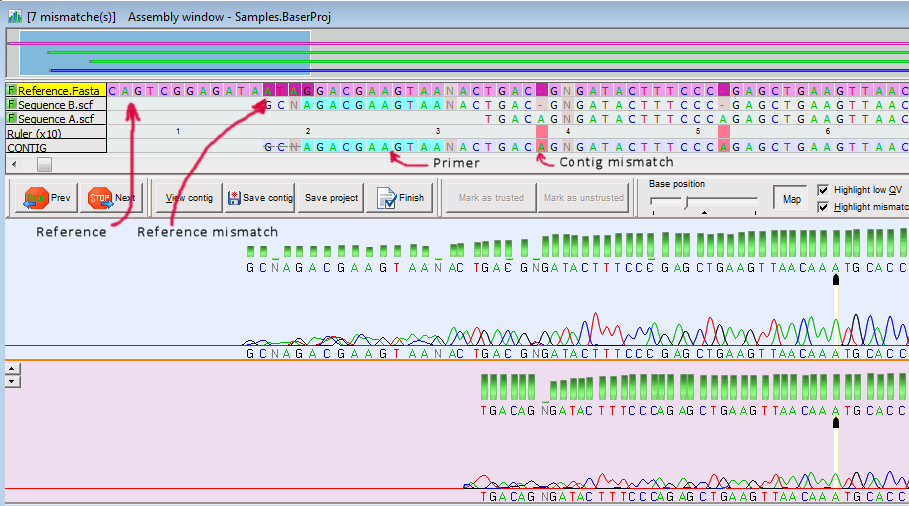
When the assembly process is ready, you can check the log window and the assembly window. The reference sequence will be placed in the contig grid on the top row and it will have a light-pink background. The mismatches are shown in dark-purple in reference and red in contig.